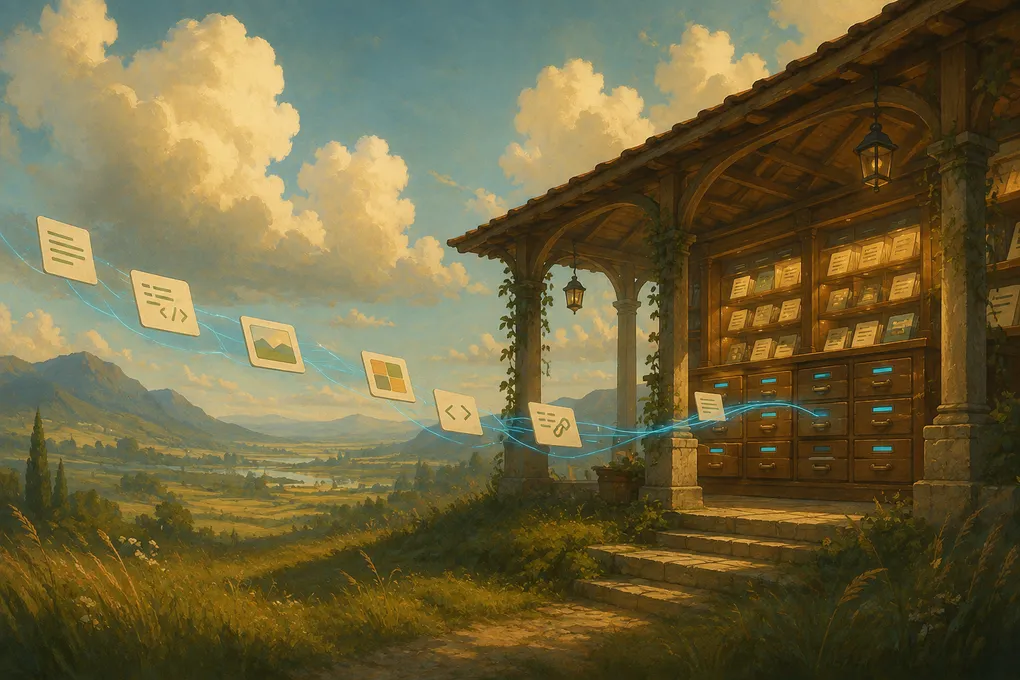
Building Pastea: Giving the Mac Clipboard a Memory
The Mac clipboard is incredibly useful, but also strangely forgetful. Copy something new and the previous item is gone. A link you needed, a command that finally worked, a color value, or a useful paragraph can disappear with one more ⌘ C.
We built Pastea around a simple idea: your clipboard should have a memory.
Pastea is a native, local-first clipboard history manager for macOS. It remembers the text, links, code, colors, images, screenshots, and files you copy, then gives you a fast way to search, organize, and paste them again. More importantly, it does this without turning a tiny everyday action into another place where you have to manage data.
The Problem Wasn’t Copy and Paste
Copy and paste already works. The real problem is everything that happens around it.
During a normal day, I might copy an API response from a browser, a command from a terminal, an error from Xcode, a hex color from a design, and a paragraph from a document. Each item is temporarily important, but the system clipboard treats all of them as disposable.
Traditional clipboard managers solve the first part by keeping a list. But a long, undifferentiated list creates a second problem: the more useful the history becomes, the harder it is to scan.
Pastea needed to feel less like a database and more like a natural extension of the Mac. Open it with ⇧ ⌘ V, type a few characters, find the clip, and keep moving.
A Clipboard History That Organizes Itself
Pastea recognizes different kinds of copied content and presents them accordingly. Code should look like code. A color should show its swatch. A link should retain useful context. An image should remain visual rather than becoming a meaningless filename.
Everything is automatically organized by content type, source app, and time. Search cuts across that history, while filters help narrow it to the kind of item you remember. You can also pin important clips and collect related items into lists.
That balance matters. Most clips should require no maintenance at all, while the handful you reuse deserve a permanent, intentional home.
Designed to Stay in Your Flow
A productivity tool stops being productive when it pulls you into its own world.
Pastea’s quick panel appears close to where you are working. With macOS Accessibility permission, selecting a result pastes it directly back into the active app. Without that permission, Pastea still places the result on the clipboard so you can paste it yourself.
For content you use constantly, Inline Shortcuts remove even the search step. Give a saved clip a short name such as ;welcome, type it in any regular text field, and Pastea expands it into the full response. It is useful for email replies, addresses, commands, templates, and any text you are tired of typing twice.
Screenshots Should Be Searchable Too
Screenshots are often notes in disguise. They contain error messages, tracking numbers, settings, conversations, and small details we expect to remember later.
Pastea uses on-device text recognition to extract words from images and screenshots. That means a screenshot of an error can appear when you search for part of the message, even if you never renamed the file or added a tag. The original image stays intact, and the recognized text remains alongside it.
Recognition happens locally on the Mac. Concealed clips are not scanned, and the feature can be disabled in Privacy settings.
Local-First by Design
A clipboard manager can see some of the most sensitive material on a computer, so privacy could not be an afterthought.
Pastea stores clipboard history on your Mac rather than on our servers. It recognizes concealed content, lets you ignore specific apps or entire content types, and gives you control over retention. Link previews can be disabled as well.
Sync is optional and off by default. If you enable it, your history moves between your Macs through your private iCloud database. We do not operate a separate clipboard cloud, and we cannot read that synced history.
The goal is not to pretend that clipboard access is harmless. It is to make the boundaries visible and give you practical control over what is captured, kept, or shared.
Connecting Clipboard Memory to AI Tools
One of the more unusual parts of Pastea is its local Model Context Protocol (MCP) connection.
Once enabled, an AI tool you explicitly approve can search and read your Pastea history through an endpoint running only on your Mac. That turns vague requests into useful ones:
- “Find the API snippet I copied earlier today and explain it.”
- “Turn the pricing notes I copied yesterday into a short email.”
- “Find that product description and rewrite it in a clearer tone.”
Each client is approved individually and can be revoked. Connected tools cannot delete clips, and concealed items are never exposed. MCP is also off by default; it is there for people who want their clipboard to become useful context, not as a requirement for using the app.
Building a Quietly Capable Mac App
Our design target for Pastea has always been calm, native, precise, and quietly capable.
That means familiar keyboard behavior, real macOS controls, a restrained visual system, and motion that never delays the action you came for. It also means graceful fallbacks when a system permission is unavailable. Pastea should explain what changed and keep doing as much as it safely can.
Under the interface, the same principle shapes the architecture. Clipboard classification, storage, migrations, retention, and sync mapping live in a reusable Swift package, while AppKit-specific pasteboard access stays at the edge. Keeping that boundary clear makes the core behavior easier to test and leaves room for Pastea to grow without tangling platform code into the data model.
Try Pastea
Pastea is available for Macs running macOS 15 or later. Every new installation starts with a seven-day trial of the complete app, with no credit card required.
Download Pastea and use it during a real workday. The moment to watch for is simple: you copy something new, realize you still need the previous item, press ⇧ ⌘ V, and it is already there.
That small moment is why we built it.